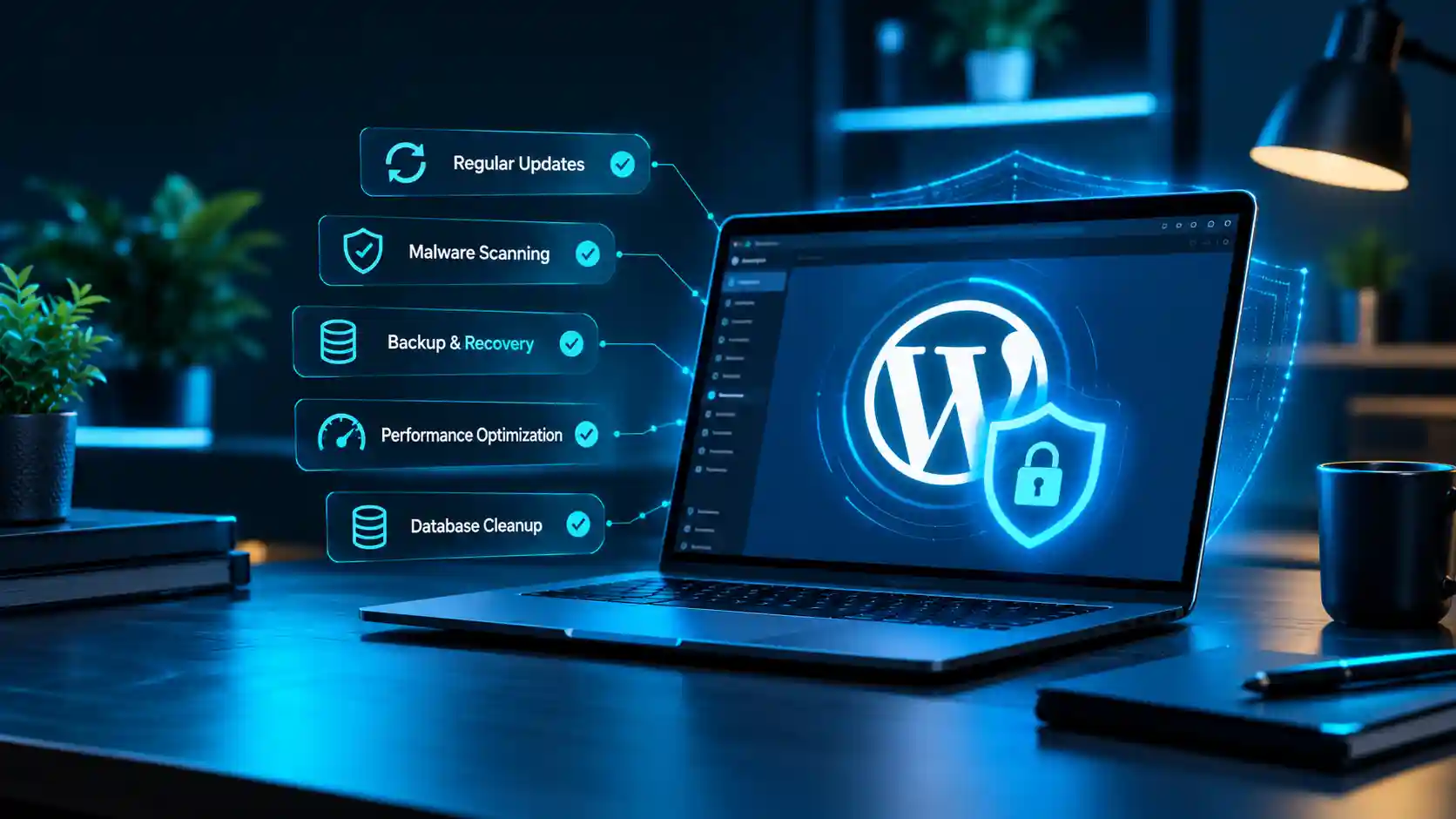
How to Improve Your WordPress Security & Maintenance Plan
A solid WordPress Security & Maintenance Plan is the difference between a website that quietly does its job and one that breaks at the worst possible moment. Most WordPress hacks and failures don’t come from advanced attacks. They come from outdated plugins, weak passwords, and missing backups.
If you run a business site, a WooCommerce store, or a client project, security and maintenance can’t be an afterthought. This guide walks through the practical steps to improve your plan, whether you manage one site or many.
Why You Need a WordPress Security & Maintenance Plan
WordPress powers a huge share of the web, which makes it a common target. Bots constantly scan for known vulnerabilities in themes and plugins, and they don’t care whether your site is big or small.
Without a plan, updates get skipped, backups go untested, and problems are found only after visitors complain. A written plan turns random fixes into a routine.
Core Parts of a Strong WordPress Security & Maintenance Plan
Every good plan covers these areas:
- Updates
- Backups
- Access control
- Monitoring
- Cleanup and performance
- Recovery steps
1. Keep Everything Updated
Outdated software is one of the most common ways sites get compromised. Update WordPress core, themes, and plugins regularly.
- Test major updates on a staging site first, especially on WooCommerce and Elementor Pro sites.
- Enable auto-updates for minor core releases and trusted plugins.
- Remove plugins and themes you no longer use. Deactivated code can still be vulnerable.
2. Set Up Reliable Backups
A backup is only useful if you can restore it. Keep copies of both your WordPress files and database, store them off-server, and test a restore now and then.
For a simple brochure site, weekly backups may be enough. For an online store or LMS with daily orders or enrollments, daily or even real-time backups make more sense.
3. Strengthen Login and User Security
Many attacks target the login page, including brute-force attacks. Small changes make a big difference:
- Use strong, unique passwords with a password manager.
- Turn on two-factor authentication for admin accounts.
- Limit login attempts.
- Give each user only the role they need. Don’t hand out Administrator access casually.
- Delete inactive accounts.
4. Add a Security Plugin and Firewall
A reputable security plugin can provide a firewall, malware scanning, and login protection. Pick one, configure it properly, and avoid stacking several overlapping security tools, which can cause conflicts and slow your site down. A server-level or DNS-level firewall adds another layer of protection.
5. Monitor Uptime and Activity
You can’t fix what you don’t know about. Use uptime monitoring so you’re alerted if the site goes down. An activity log shows who changed what, helping you spot suspicious behavior and keep teams accountable.
Build a Maintenance Schedule You’ll Actually Follow
A WordPress Security & Maintenance Plan only works if it’s consistent. Here is a simple schedule to start with.
Weekly
- Apply updates
- Review security scans and uptime reports
- Confirm backups ran successfully
Monthly
- Test a backup restore
- Review user accounts and roles
- Clear spam comments, old revisions, and unused media
- Check for broken links and 404 errors
Quarterly
- Audit plugins and themes, and replace abandoned ones
- Review site speed and Core Web Vitals
- Rotate passwords and API keys where needed
Security Hardening Tips for Stronger Protection
Beyond routine tasks, add these hardening steps:
- Use HTTPS with a valid SSL certificate.
- Choose quality hosting that runs a current PHP version.
- Disable file editing from the WordPress dashboard.
- Set correct file permissions and protect
wp-config.php. - Install plugins and themes only from trusted sources.
Avoid nulled (pirated) themes and plugins. They are a common source of hidden malware.
What to Do If Your Site Gets Hacked
Even the best WordPress Security & Maintenance Plan can’t guarantee zero risk, so prepare a recovery process in advance:
- Put the site in maintenance mode and change all passwords.
- Scan for infected files and find the entry point.
- Restore a clean backup, or remove the malware manually.
- Update everything and remove the vulnerable component.
- Request a review if search engines or your host flagged the site.
- Note what happened and update your plan.
Should You Handle It Yourself or Get Help?
If you’re comfortable with WordPress, you can manage much of your WordPress Security & Maintenance Plan on your own. But maintenance takes time, and it’s easy to fall behind when you’re busy running a business.
Many site owners choose a monthly care plan, so updates, backups, and monitoring are handled consistently, and someone can respond quickly when something goes wrong.
Conclusion
Improving your WordPress Security & Maintenance Plan doesn’t require complicated tools. Start with updates, backups, and strong access control, then add monitoring and follow a regular schedule. Small, repeatable habits protect your traffic, your revenue, and your reputation.
Take an hour this week to write down your plan. A documented routine is far easier to follow than good intentions.